
Export to RGB PDF from CMYK Indesign file
- Nov 23, 2015
- 1 min read
Updated: Apr 19, 2024
Many times, print designer will always set their .ind file as CMYK when they work. However, with the rise of modern techonolgy, clients will sometime request for a RGB version to be placed online.
So how do you ensure that the pdf you have exported is in RGB?
For one, you can go the hard core and old school way of saving another set of your links and convert them one by one to RGB and export to pdf again. But lo and behold, there's a much more simpler way to do this to save your life.

Step 1.
Open your working file,
go to "Edit" --> "Transparency Blend Space" --> change to "Document RGB"

Step 2.
After you are done,
go to "Export" --> change format to "Adobe PDF (Interactive)" --> click "Save"

Step 3.
Choose your settings,
click "OK"
And ta-daaaa! You are done!
But how are you sure it's in RGB?
Acrobat Pro is a very powerful and useful for any designer. There, you will be able to find out if your pdf is in RGB or CMYK.
Step 4.
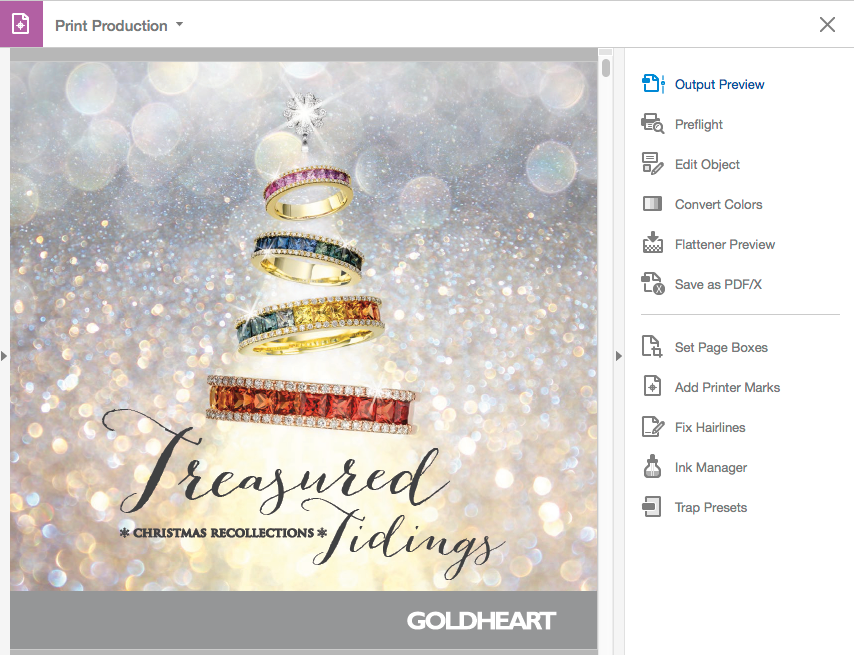
Open up your pdf in Arcobat Pro,
look for "Print Production" --> "Output Preview" and click on it.

Step 5.
A magicial box will appear. Go under "Show" -> Select "RGB".
Whatever images that are RGB will appear and those that are not will disappear.
The same can be check for CMYK.
There you have it! Work smart!







Comments